NewORBNET Stream Deck for Milestone XProtect · Works with Live Maps
Put Milestone XProtect at your operators’ fingertips
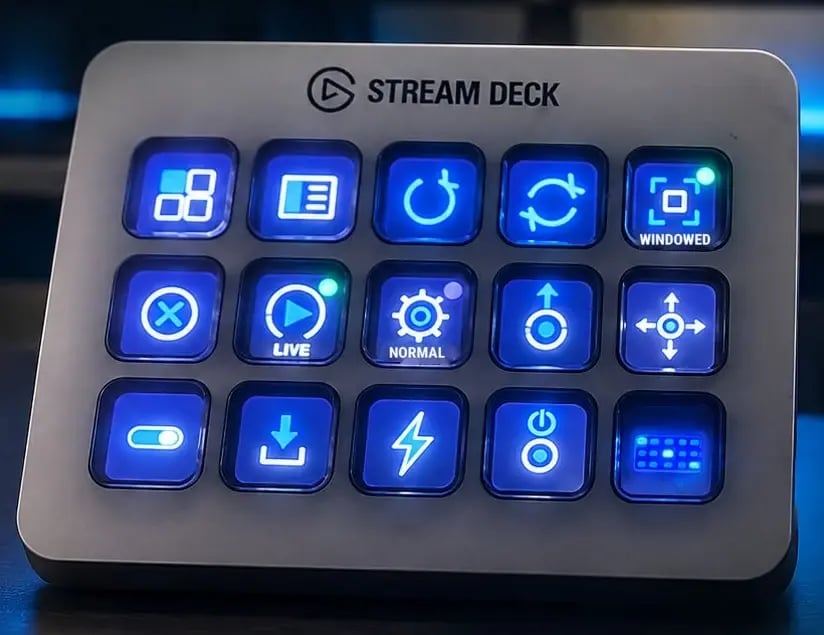
The ORBNET plugin turns an Elgato Stream Deck into a dedicated control panel for XProtect. Switch views, pop up cameras, steer PTZ, trigger outputs and events and drive Live Maps, each from one physical key.
Smart ClientPTZInputs & OutputsUser-defined eventsLive Maps
Start your 7-day trialDownload the user guide
Try it free on up to 10 Stream Decks.
The operator problem
When an incident unfolds, nobody should be hunting for a menu.
XProtect gives operators everything they need. Getting to it quickly, under pressure and with a mouse, is another matter:
- Actions buried in menus, from live and playback to setup mode and full screen
- Fiddly mouse work steering PTZ, panning maps and zooming to alarms
- Constant context switching between cameras, outputs, events and the map
- Inconsistent habits, with every operator finding their own route to the same action
The ORBNET approach
One key press. Carried out by XProtect itself.
The plugin talks to a small ORBNET add-on installed in your XProtect system. It runs automatically inside the Smart Client and the Event Server, so there is nothing extra to launch and no new application for operators to learn. Server-side actions keep working even when no Smart Client is open.
Stream Deck → ORBNET integration (Smart Client / Event Server) → Milestone XProtect
Capabilities
Built for the actions operators repeat all shift
Every key is configured in the Stream Deck software. Where an action needs a choice, such as a camera, PTZ preset, event or saved location, you pick it from a list pulled live from your system.
Smart Client control
Switch between live and playback, toggle setup mode, show or hide the side panel, go full screen, and refresh, reload or close the client.
Cameras and PTZ
Pop up a chosen camera in its own window or enable and disable it. A dedicated PTZ panel gives eight-way movement, zoom, home and saved presets.
Outputs, inputs and events
Switch a camera’s outputs on and off from a grid of tiles, see input status at a glance, and fire any user-defined event with one press.
Live Maps at hand
Zoom, pan, follow assets, jump to the newest alarm, fly to saved locations and drop incidents, without reaching for the mouse.
Desk utilities
Open a web page, launch an application or keep an eye on the workstation’s CPU load, all from the General panel.
Ready-made panels
ORBNET layouts install the first time you open them and stay yours to customise. Updating the plugin keeps your changes and never creates duplicates.
Panels
Organised the way operators work
Keys are grouped into panels that open from one another, each with a Back key to return. Bring a panel in once with its Switch to key and it stays, ready to customise.
- General is the home panel, with the connection test, desk utilities and a Switch to key for each part of the system.
- Smart Client holds camera and client controls, and opens the PTZ and Inputs & Outputs panels automatically.
- Live Maps groups map controls into four sub-panels on larger Stream Decks.
Using a Mini or Standard? The same controls spread across pages, reached with the Stream Deck’s page arrows.
General connection test, utilities, Switch to keys
↓
Smart Client
→ PTZ
→ Inputs & Outputs
Live Maps
→ View & Navigation
→ Selection & Alarms
→ Settings & Panels
→ Resources
Every panel and sub-panel has a Back key.
Live Maps
Run the map without touching the mouse
Paired with ORBNET Live Maps, the Stream Deck becomes a situational awareness console. Select an asset or camera on the map, then let the keys do the rest.
View and navigation
Zoom, pan, a saved home view, centre on selection, full-screen and pop-up maps, and Dark, Streets or Satellite basemaps.
Selection and alarms
Fly to the newest active alarm, acknowledge alarms, select cameras and objects, show trails, follow assets and pop up selected cameras.
Incidents and resources
Drop an incident at the map centre, go to saved locations, and add, find or remove geofences, buildings and locations.
Settings and panels
Icon and text size, maximum frame rate, trail history length, info cards, the alarms window and the map’s side panels.
Most map actions work on the item currently selected in Live Maps.
Use cases
Faster hands where response time matters
Wherever operators repeat the same XProtect actions under pressure, a physical key beats a menu.
Control rooms and monitoring centres
Give every desk the same layout, so routine actions become muscle memory and shift handovers stay consistent.
Control room solutions →Incident response on the map
Jump to the newest alarm, acknowledge it, follow the asset and drop an incident marker in a few key presses.
Explore Live Maps →PTZ-heavy sites
Transport hubs, perimeters and critical infrastructure, where operators move cameras constantly and need presets in reach.
Transport solutions →Training new operators
Ready-made panels give new starters a clear, labelled set of actions from day one, instead of a maze of menus to memorise.
Setup and administration
From box to first key press
Install once, test the connection with a single key, and manage every Stream Deck centrally from the XProtect Management Client.
Add ORBNET to XProtect
Install the ORBNET integration; it runs inside XProtect automatically
Install the plugin
Double-click the installer; ORBNET actions appear in the Stream Deck software
Test the connection
Press the Bridge Connection key; a tick means you are connected
Load your panels
Press a Switch to key and the panel installs once
License the device
Apply a licence to each Stream Deck in Management Client
Managed centrally in the Management Client
Administrators manage the plugin from a Stream Deck Configuration page under the ORBNET Plugins node. Changes apply automatically, with no Smart Client restart.
Overview
Plugin version and a summary of what the Stream Deck can control.
Licence
Licence status and trial time, licence import and export, and the choice of which features are active.
Device licensing
Every Stream Deck that has connected, with Apply and Revoke. Unlicensed devices can connect, but their key presses are ignored.
Diagnostics
Log level and one-click access to the log folder for support.
FAQ
Stream Deck questions, answered
What is the ORBNET Stream Deck plugin?
A plugin for the Elgato Stream Deck software that turns a Stream Deck into a control panel for Milestone XProtect. Keys can switch Smart Client modes, pop up cameras, steer PTZ, trigger outputs and user-defined events, and control ORBNET Live Maps.
Which Stream Deck models are supported?
Stream Deck Mini, Standard and XL, with the Elgato Stream Deck software installed. On larger models the Live Maps controls are grouped into sub-panels; on smaller models they spread across pages.
What do I need on the XProtect side?
Milestone XProtect 2025 R1 or later, with the ORBNET integration installed. It runs automatically inside the Smart Client and the Event Server, so there is nothing extra to launch.
Do I need ORBNET Live Maps?
Only for the map controls. Smart Client, camera, PTZ, output and event keys work without it. Map keys need the Live Maps view open in the Smart Client.
How is the Stream Deck plugin licensed?
Each Stream Deck is licensed individually from the XProtect Management Client. A 7-day trial covers up to 10 Stream Decks. Unlicensed devices can connect, but their key presses are ignored.
Will updates overwrite my custom layouts?
No. ORBNET layouts install the first time you open them, and reinstalling or updating the plugin keeps your changes without creating duplicate layouts.
Works with ORBNET
Extend control to your ORBNET integrations
The Stream Deck drives XProtect and the ORBNET tools your operators already rely on, from the same set of keys.
You are here
ORBNET Stream Deck
One-press control of the Smart Client, cameras, PTZ, outputs and events from an Elgato Stream Deck.
Situational awareness
Live Maps
Dedicated Stream Deck panels for map navigation, alarms, incidents, geofences, buildings and locations.
Explore Live Maps →Your existing logic
XProtect rules and events
Activate Event keys fire the user-defined events your XProtect rules already use, so existing alarm and automation logic is one press away.
Try it on your own desk
Ready to give your operators a faster way to work?
Try the ORBNET Stream Deck free for 7 days on up to 10 Stream Decks, with your own cameras, layouts and Live Maps.
Download the plugin and user guideBook a demo
Want to see it first? Book a demo and we’ll walk through the panels on your own XProtect workflows.
What you need
- An Elgato Stream Deck Mini, Standard or XL with the Elgato Stream Deck software
- Milestone XProtect 2025 R1 or later, with the ORBNET integration installed
- ORBNET Live Maps for map features, with the Live Maps view open
Licensing
- 7-day trial on up to 10 Stream Decks
- After the trial, an ORBNET licence for each Stream Deck
- Licences applied and revoked per device from the Management Client